 Your Name Inbox
Keeping email working when staff leave or roles change
Last reviewed
The quick version
- Stop the person signing in. Keep their mail.
- Decide who answers mail sent to their address.
- Delete nothing until you're sure.
Why this needs a plan
When someone leaves, customers still write to their address. If the mailbox is simply closed, those messages go nowhere. Microsoft notes you can keep the former employee's address active in case customers or partners send mail to it.[1]
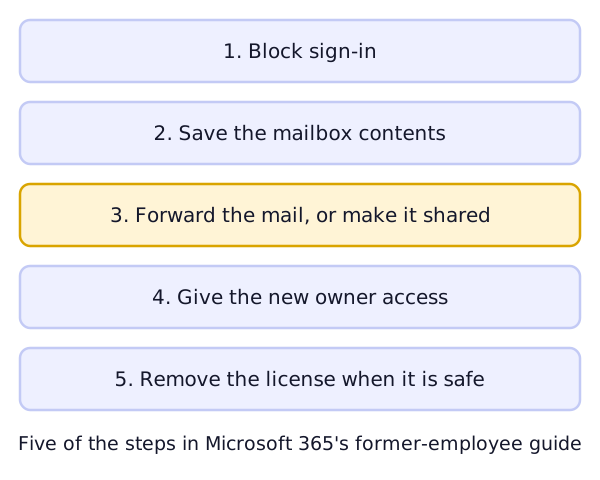
The steps below are five of the steps in Microsoft 365's guide for a former employee. That guide also covers wiping a phone, and ends with deleting the account. Other providers have their own tools, but the order is a good model.
The steps
1. Block sign-in. Stop the person getting into your organization's services.[1] Do this first.
2. Save the mailbox. Microsoft lists saving the contents of the mailbox as its own step.[1] Whoever takes over the work will find the old messages useful.
3. Forward the mail, or make it shared. Microsoft's guide says you can forward the email to another employee or convert it to a shared mailbox.[1]
4. Give access. Another employee can be given access to the former person's data.[1]
5. Remove the license when the rest is done. In Microsoft's guide, removing the license comes after the steps above, and deleting the account comes after that.[1]
Forward, or shared mailbox?
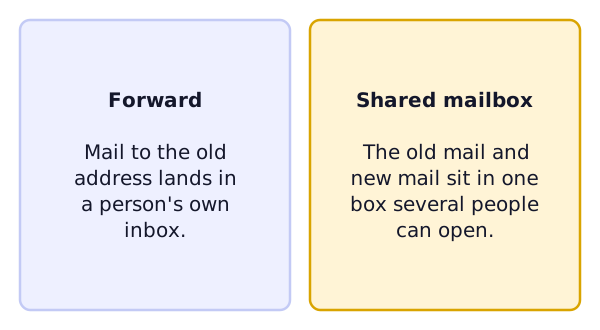
Forward is the quick fix for a short time. The person who gets the mail sees it in their own inbox, mixed in with everything else.
Shared mailbox keeps the old messages and new ones together. When you convert a user's mailbox, all of the existing email and calendar information is retained.[2] More than one person can open it.
Two facts to watch. A shared mailbox without a license is limited to 50 GB.[2] And a new shared mailbox has sign-in blocked by default, so people open it from their own accounts.[3]
Don't rush the delete
If you turn the mailbox into a shared one, don't delete the user's account. Microsoft says the shared mailbox needs it there as an anchor.[2] The mailbox also needs a license before you convert it.[2] Once it's converted, the license can go if the mailbox is under 50 GB.[2]
After an account is deleted, Microsoft keeps its OneDrive and Outlook content for 30 days.[1] During that time you can restore it. Treat that as a safety net, not a plan.
When a role changes instead
Sometimes nobody leaves. A person just moves to a new job. Keep their personal mailbox. Move the role's address, like [email protected], to the new person. An alias or a shared mailbox makes that easy, because the address isn't tied to one human.
Read aliases and shared inboxes if you haven't yet.
Sources
- Overview: Remove a former employee and secure data, Microsoft Learn (accessed 2026-11-03)
- Convert a user mailbox to a shared mailbox, Microsoft Learn (accessed 2026-11-03)